You’ve done this a dozen times without thinking about it. You click Connect on Gmail inside Claude or ChatGPT. Your browser jumps to a Google page you recognize. It lists a few things the app wants to do. You click Allow, and you’re sent back to where you started, now connected.
You never typed your password into the assistant. It never saw it. And yet it can now search your inbox.
That sleight of hand is OAuth, and it’s the reason connectors are safe enough to use at all.
OAuth is a way to let one app act on your account without giving it your password.
That’s the whole idea. The rest of this is how it works, how to read the screen you’re approving, and the few habits that matter.
The visitor badge
Think about how a good office building handles a contractor. The contractor doesn’t get your keys. The front desk checks with you, then issues a visitor badge. It opens the third floor and nothing else. It stops working on Friday. And if the contractor turns out to be a problem, security cancels that one badge without changing a single lock.
OAuth is the front desk. The badge is called a token. What it opens is its scope. When it stops working is its expiry. And canceling it is revoking.
You’ll see all four words in menus, so they’re worth keeping.
What happens when you click Connect
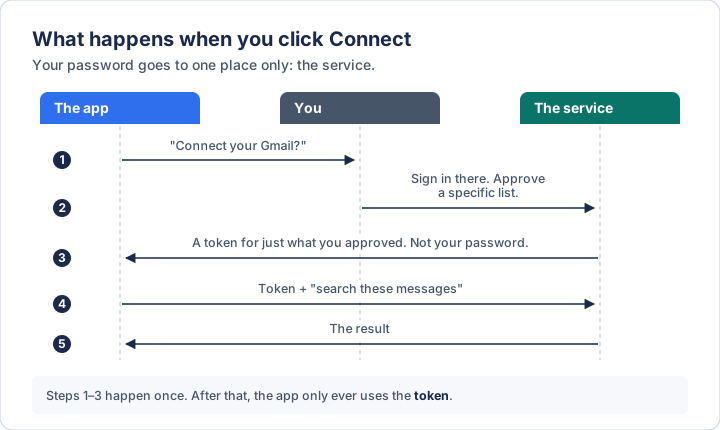
Three parties, and the order matters.
1. The app asks. The assistant tells you it needs access to something. It doesn’t ask for a password. It sends you somewhere else.
2. You approve, at the service. You land on the service’s own page. Google’s, Slack’s, Notion’s. You sign in there, to them, the way you always do. Then you see the list of what the app is asking for and decide.
3. The service issues a token. It hands the app a badge covering exactly what you approved. Your password stays with the service. The app never touches it.
4 and 5. The app uses the token. Every request from here on is the app showing the badge. The service checks it, and either does the thing or says no.
Steps 1 to 3 happen once. After that it’s all badge.
Why not just give it the password?
It’s a fair question, and it’s how a lot of software worked before OAuth. An app would ask for your username and password and sign in as you.
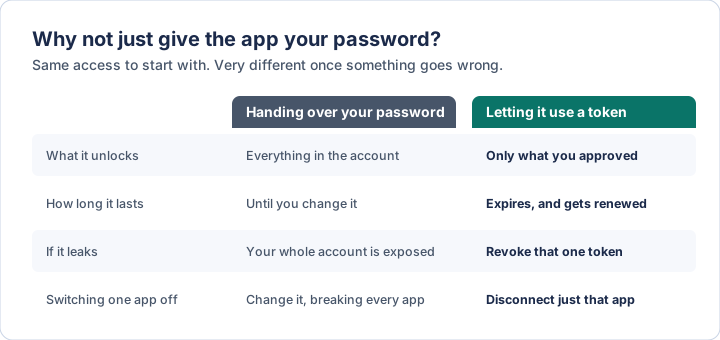
The password does the same job, and does it far too well. It’s all-powerful, permanent, and shared. If one app leaks it, every app and the account itself are exposed, and the only fix is to change it, which breaks everything else that was using it.
A token is the opposite on all four counts. It’s narrow, temporary, and individual. That last word is what matters most when something goes wrong, because it means you can turn off one thing without touching the rest.
How to read the screen
The consent screen is where the whole system either works or doesn’t, and it’s the one part you’re actually in charge of. Four things to check, in this order.
1. Whose page is it? Look at the address bar before anything else. It should be the real address of the service you’re connecting: google.com, slack.com, notion.so. A consent screen on a lookalike address is the standard trick, and it’s the one check no setting can do for you.
2. Who’s asking? The screen names the app. Is it the one you just clicked Connect in? A request from an app you’ve never heard of, at a moment you didn’t start one, is a reason to close the tab.
3. What exactly can it do? This is the scope list, and it’s where the difference between a sensible request and an overreach lives. Compare:
- See your email addresses
- Read your email
- Read, compose, send, and permanently delete all your email
The same service, three very different badges. It’s the same read-versus-write distinction from the connectors post: reading is low risk, anything that sends, edits, or deletes deserves a second look. If an app that only needs to find things is asking to delete them, that mismatch is the signal.
4. Which account? If you have a personal and a work account signed in, make sure the screen is about the one you meant. This is the mistake people actually make.
Then, and only then, Allow.
The words you’ll run into
- Authentication is who are you? Signing in.
- Authorization is what are you allowed to do? This is what OAuth handles. People mix the two up constantly, and it’s worth being able to tell them apart.
- Token, or access token. The badge. Short-lived.
- Refresh token. The thing that quietly gets the app a new badge when the old one expires, so you don’t have to approve again every hour. It’s also the part that makes “I connected this months ago” still be true today.
- Scope. The list of what a token covers.
- Client. The technical word for the app asking for access. When you see it in a settings page, it means the app, not you.
- Consent screen. The page above.
- Sign in with Google. A close cousin. Same machinery, used to prove who you are rather than to grant access to your data.
Where this shows up with AI
Almost everywhere you’ve connected something.
Claude and ChatGPT. Clicking Connect on a directory connector (or an app, in ChatGPT’s wording) is OAuth. You’re sent to the service, you approve, and you’re sent back. It’s why the assistant can work on your Drive without ever being given your Google password.
Claude Code and Codex. For a remote server that needs sign-in, /mcp in
Claude Code or codex mcp login in Codex starts the same dance, in your browser.
The ceiling is lower than you think. An assistant using a token can do the overlap of two things: what the token’s scope allows, and what your own account is allowed to do. It never gets more than you have. That’s one reason connectors are a reasonable thing to say yes to.
The other way: pasting a key
Some set-ups skip OAuth and ask you to paste a token or API key into a config file or settings box instead. Anthropic’s own documentation shows this for connecting GitHub to Claude Code: a personal access token in a header.
It works, and it’s sometimes the only option. But it’s the password problem in miniature. A pasted key is usually broad, often doesn’t expire, and sits in a file somewhere. If there’s a Connect or Sign in button as an alternative, use that. If you do paste a key, make it the narrowest one the service will let you create, give it an expiry if there’s a choice, and never put it anywhere that gets shared. A skill that travels as a folder is exactly the wrong place for one.
Turning something off
This is the part most people skip, and it’s the entire reason for tokens.
Two places to do it:
- On the AI side. In Claude, Customize → Connectors. In ChatGPT, Settings → Apps. Disconnect it there.
- On the service side. Every major service keeps a list of the apps you’ve authorized, usually under Security or Connected apps in your account settings. Removing an app there revokes its token at the source, which is the one that counts.
Do the service side if you have any doubt. Disconnecting in the assistant stops the assistant using it. Revoking at the service stops anyone using it.
The honest limits
OAuth limits what you hand over. It doesn’t make the thing you hand it to trustworthy. A legitimate-looking app can ask for far more than it needs, and you can click Allow. Nothing in the protocol stops that. The protection is you, reading the screen.
It doesn’t stop the assistant being misled. A connector with sensible, narrow permissions can still read an email containing instructions and act on them. That’s prompt injection, a separate problem that OAuth has nothing to say about. Narrow scopes help, because a manipulated assistant can only misuse what it was given.
A leaked token works until it’s revoked. A token is a key. If someone gets one, they can use it exactly like the app could. It’s the reason expiry and revocation exist, and the reason to revoke things you’re not using.
Approval fatigue is real. After the tenth consent screen you’ll click through the eleventh. The screens that matter are the ones that look like all the others.
For the curious: what’s under the hood
You don’t need this, but it explains a few words you’ll see.
The standard is OAuth 2.0, published in 2012. The version of the flow almost everyone uses is called the authorization code flow: after you approve, the service doesn’t hand the app a token directly. It sends back a short-lived, one-time code, and the app swaps that for the token in a separate step. That extra hop keeps the token out of your browser’s address bar.
PKCE (pronounced “pixie”) is a safeguard added later. The app generates a secret, shows only a fingerprint of it at the start, and proves it holds the original at the end. If someone intercepts the code in between, it’s useless to them without the secret. It’s now expected on essentially every OAuth flow.
In January 2025 the security guidance was consolidated into RFC 9700, which deprecates the older, weaker variants. There’s also an effort known as OAuth 2.1 to fold these practices into one tidy document; check its current status if it matters to you.
And for the connectors in this series: the Model Context Protocol builds its sign-in on OAuth, rather than inventing its own. That’s why connecting one feels the same as connecting anything else.
Three ways this goes wrong
Clicking Allow without reading the list. The scope list is the one piece of real information on the screen. Thirty seconds on it is the whole safety margin.
Never revoking anything. Connections accumulate. The app you tried once last spring still has a working badge. Once a quarter, open the list of authorized apps at the services you use most, and remove everything you don’t recognize or use.
Pasting a key when you could have signed in. If both options exist, the sign-in one is almost always safer, because it’s scoped, it expires, and you can cancel it without touching anything else.
Try it now
Pick one service you use every day, probably Google or Microsoft. Open the list of apps and connections authorized on your account. Read down it.
Most people find at least two things they don’t remember approving. Remove them, and you’ve done the whole practice in five minutes.
Keeping this current
This is a standard rather than a product, so the concepts hold still. The menus move around.
- The OAuth basics: oauth.net
- The core spec: RFC 6749
- The current security guidance: RFC 9700
- PKCE: RFC 7636
- How MCP uses it: modelcontextprotocol.io
- Claude, connectors: support.claude.com
- ChatGPT, apps: help.openai.com
Written 22 October 2026. Diagrams are original to this post.
If you want the layer underneath this — what these systems actually are, where they fail, and the vocabulary to follow the conversation — The AI Primer is the plain-English version. $23.97.