At some point the assistant stops being enough on its own. You ask it about a thread from last week and it can’t see your email. You ask it to tidy a project board and it can only describe how you might do that yourself. It’s capable, and it’s standing outside the building with no key.
A connector is the key. And if you’ve gone looking for one, you’ve almost certainly run into the three letters sitting next to it: MCP.
They’re two names for nearly the same thing, seen from different sides:
A connector is a link between your assistant and a service you use. MCP is the standard way those links are built.
That’s the whole idea. The rest of this is what that means in practice, how to connect your first one, and the setting worth checking before you do.
What a connector actually is
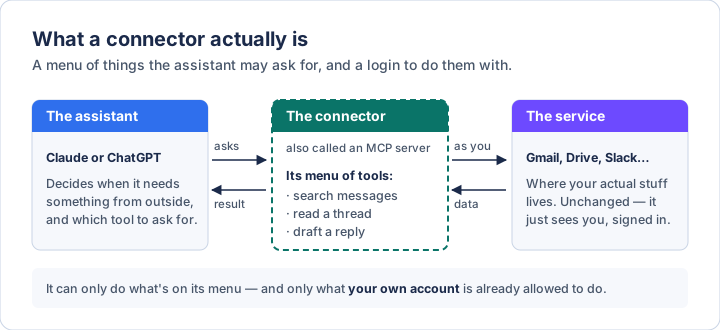
Three parts, and the middle one is the connector.
On one side is the assistant. On the other is a service you already use — Gmail, Google Drive, Slack, Notion, a calendar, a project tracker. The connector sits between them and hands the assistant a short menu of tools: search messages, read a thread, draft a reply. Each one comes with a line of description saying what it does.
When you ask something the assistant can’t answer from the conversation, it reads that menu, picks the tool that fits, and asks the connector to run it. The connector does the work using your login and passes the result back.
Two consequences follow, and they’re the useful part:
It can only do what’s on the menu. A connector that offers read a thread and search messages cannot send an email, however you phrase the request. The menu is the ceiling.
It can only see what you can see. It acts as you, signed in. It doesn’t get special access to your company’s systems; it gets yours. If you can’t open a folder, neither can the connector.
And MCP is the plug
MCP stands for Model Context Protocol. You will never need to know the protocol itself, any more than you need to know how USB works to plug in a keyboard. What matters is that it’s a standard.
Before it existed, every AI app had to build its own link to every service, one by one. Ten apps and fifty services meant hundreds of separate integrations, most of which never got built. MCP is a single shape for that link. A service builds one MCP server, and any assistant that speaks MCP can use it.
The short history, because it explains why you see the letters everywhere:
- Anthropic published it in November 2024.
- OpenAI adopted it in March 2025 — the moment it stopped being one company’s format and became the industry’s.
- It was handed to a neutral home in December 2025: the Agentic AI Foundation, under the Linux Foundation, co-founded by Anthropic, OpenAI and Block. Google, Microsoft and AWS are among the supporters.
So the same connector can work in Claude, ChatGPT, Gemini, Copilot and most coding tools. That’s the same lucky property skills have, and it’s still rare enough in this industry to be worth noticing.
Which word you’ll see where
The vocabulary hasn’t settled, so here’s the translation table:
- Connector — Claude’s word, in menus and help pages.
- App — ChatGPT’s word. OpenAI called these connectors until December 2025, then renamed them. Same thing.
- MCP server — the technical name, used in Claude Code, Codex, and anywhere aimed at developers.
- Desktop extension — Claude’s word for a connector that runs on your own computer rather than on the internet. More on that below.
If you’re reading instructions written for one and using the other, swap the word and the steps usually still make sense.
Where this fits next to skills and plugins
If you’ve read the difference between a skill and a plugin, this is the piece that post kept pointing at.
A skill changes how something gets done. It’s instructions. However good, instructions can’t open your inbox.
A connector changes what the assistant can reach. It’s access. It has no opinion about which messages matter or how you write.
A plugin is a box that can hold both — often a connector plus a few skills for using it well, installed in one step.
The pairing worth remembering: a connector gets the assistant into your email; a skill tells it what you consider worth flagging. Most of the useful set-ups you see are one of each.
Two kinds: remote and local
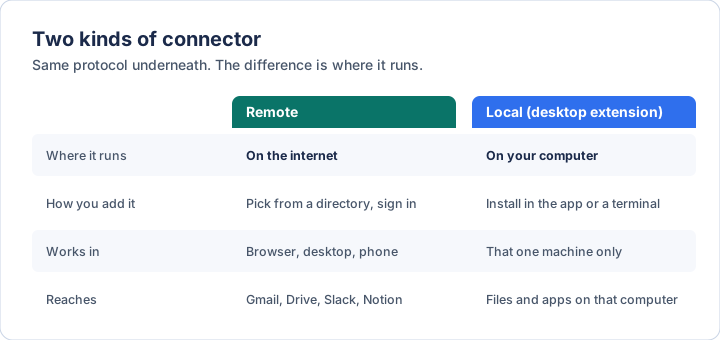
Remote connectors are what most people want, most of the time. The service runs the connector on the internet; you pick it from a list and sign in. It then works everywhere your account does — browser, desktop app, phone.
Local connectors run on your own machine. They exist for things that only live on that machine — your files, an app installed there, something on a private network. They only work where they’re installed, and installing one means running someone else’s software on your computer, which is a bigger decision than it looks. If what you need is access to a folder, connecting a folder is usually the simpler answer.
Start remote. Reach for local when you have a specific reason.
Claude
In the Claude app or on the web:
1. Go to Customize → Connectors. (Or, from inside a chat, click +, hover over Connectors, and choose Manage connectors.)
2. Click + and browse the directory. It’s also browsable on its own at claude.ai/connectors, with a note on what each one can do.
3. Pick one and click to connect. You’ll be sent to the service to sign in and approve access. This is the moment to read the screen: it tells you what you’re granting.
4. Back in Claude, open the connector’s settings and look at its tool permissions before you use it. More on this below — it’s the one setting worth your time.
Connectors from the directory are available on every plan, including free. You can also add a custom connector — any MCP server, by URL, under Add → Custom → Web on the same page. Free accounts get one of those; paid plans more. A custom connector is reached from Anthropic’s cloud, not your machine, so the server has to be on the public internet.
Connectors you add here follow you into Cowork and Claude Code too.
Local ones live separately, in the desktop app under Settings → Extensions → Browse extensions. They install in one click, and any password or key they ask for is kept in your computer’s own secure storage — Keychain on a Mac, Credential Manager on Windows.
ChatGPT
ChatGPT calls them apps, and the set-up is the same shape:
1. Go to Settings → Apps.
2. Browse the directory, pick one, and sign in to the service when asked.
3. In a chat, either just ask — ChatGPT will reach for a connected app when it’s relevant — or name it directly with @, or pick it from the + menu.
One detail that catches people out: naming an app with @ applies to that message, not the whole conversation. If a follow-up needs it again, name it again.
Also in Settings → Apps: when ChatGPT should ask you before using an app. The options run from Always ask through Any changes and Important actions (the default) to Never ask. More on choosing below.
For connecting an MCP server that isn’t in the directory, there’s Developer mode, under Settings → Apps → Advanced settings. Full support — including apps that change things, not just read them — is on the Business, Enterprise and Edu plans, on the web. What’s available on other plans has shifted more than once, so check the current documentation if the option isn’t there.
Claude Code and Codex
In the terminal tools, connectors go by their technical name, MCP servers, and you add them with one line. Using Notion as the example, because it publishes a remote server at a plain URL:
Claude Code:
claude mcp add --transport http notion https://mcp.notion.com/mcp
Then, inside Claude Code, type /mcp. It lists every server with its status —
connected, needs authentication, or failed — and walks you through signing in.
By default a server is added for you, in this project only; add --scope user
to have it everywhere, or --scope project to write it into a .mcp.json file
that travels with the repository. Claude Code asks for approval before using
servers from a project file, which is exactly the moment to check who put it
there.
Codex:
codex mcp add notion --url https://mcp.notion.com/mcp
codex mcp login notion
Or add it straight to ~/.codex/config.toml:
[mcp_servers.notion]
url = "https://mcp.notion.com/mcp"
codex mcp list shows what’s configured. A project can carry its own
.codex/config.toml, which Codex only loads once you’ve marked that folder as
trusted.
The setting worth checking first
Reading and changing are different risks, and both platforms now let you treat them differently. Use it.
In Claude, each connector’s tools are split into read tools (search, open, list) and write tools (send, create, edit, delete), and each can be set to Always allow, Needs approval, or Blocked. In ChatGPT, the Settings → Apps options do the same job in one dial.
The sensible default on both:
- Reading: let it. Being asked permission to search your own inbox ten times in one task trains you to click yes without looking, which is worse than not being asked.
- Anything that sends, posts, edits or deletes: make it ask. Every time, at least until you’ve watched it do that job well a dozen times.
- Anything you’d never want it to do: block it. If you only ever want help finding things in a service, there’s no reason to leave delete switched on.
In ChatGPT terms, that’s Any changes. Be wary of Never ask — it’s an option, and OpenAI labels it elevated risk for good reason.
The honest limit
A connector gives the assistant reach, not judgment. Connected to your email, it can find the thread you meant — and it can also confidently summarize the wrong one, or miss the reply that changes everything. It’s the same assistant, with the same failure modes, now pointed at your real data.
Which means the habit from connecting a folder applies: start with tasks where you’d notice a mistake. “Find the last three emails from this person and list what they asked for” is checkable in a minute. “Handle my inbox” isn’t.
The risk that’s actually new
Connectors bring one genuinely new failure mode, and it’s worth understanding rather than just being told about.
When a connector reads something — an email, a web page, a shared document — the assistant reads it too. If that text contains instructions, the assistant can mistake them for yours. This is prompt injection, and connectors are where it stops being theoretical: anyone who can send you an email can put words in front of your assistant.
The developer Simon Willison describes the dangerous combination as a lethal trifecta: an assistant that can see your private data, reads content from strangers, and can send things out. Any two are manageable. All three in the same conversation is how data leaves.
You don’t need to avoid connectors to stay clear of it. You need to notice when you’ve assembled all three:
- Your email connector reads strangers’ messages and can send. That’s all three in one place — which is why send belongs on Needs approval.
- A read-only notes connector plus a web search is two. Fine.
- Your documents plus a connector that can post to a public channel is the one to think about.
And the reading habit from installing a skill someone sent you applies with more force here. Use connectors from the official directories, or from the company that runs the service. A random MCP server from a forum is software that sits between your assistant and your accounts.
Three ways this goes wrong
Connecting everything on day one. Each connector adds its whole menu of tools to what the assistant has to choose between, and it’s not free: more tools, more chances to pick the wrong one. Some apps now load tool menus only when they’re needed, which helps — but five connectors you actually use beat twenty you added because the directory was there.
Leaving the defaults alone. The permissions screen is the entire safety system, and it takes two minutes. Most people never open it.
Expecting it to know what matters. A connector gets the assistant to your calendar. It doesn’t know that a meeting with one particular person always needs prep. That’s a skill, and it’s still yours to write.
Start with one
One connector, to the service you open most. Set its write tools to ask. Then give it something small and checkable — “what did I agree to in this week’s emails with this person?” — and read the answer against the source.
Do that three times and you’ll know more about where it’s reliable than any amount of reading would tell you.
Keeping this current
This is one of the fastest-moving corners of both products, and the vocabulary is still settling — connectors became apps once already. When the screen disagrees with this page, believe the screen:
- Claude, connectors: support.claude.com
- Claude, desktop extensions: support.claude.com
- Claude Code, MCP: code.claude.com/docs
- ChatGPT, apps: help.openai.com
- ChatGPT, developer mode: help.openai.com
- Codex, MCP: developers.openai.com
- The protocol itself: modelcontextprotocol.io
Written 2 October 2026, and checked against each product’s documentation on that date. Diagrams are original to this post.
If you want the layer underneath this — what these systems actually are, where they fail, and the vocabulary to follow the conversation — The AI Primer is the plain-English version. $23.97.