There’s a category of work that isn’t hard, just relentless. Checking the same source every Monday. Turning the week’s notes into a summary you’ll actually reread. Watching for the thing that only matters if it changes.
You already know how to ask an assistant to do any of that. A scheduled task is the same request, set to run on its own — daily, weekly, whenever — without you opening anything.
The setup takes two minutes. The part worth your attention is what changes about the prompt once nobody is watching it run.
Decide where it runs first
This is the choice that determines everything else, and it comes down to one question: does this need to work while your laptop is shut?
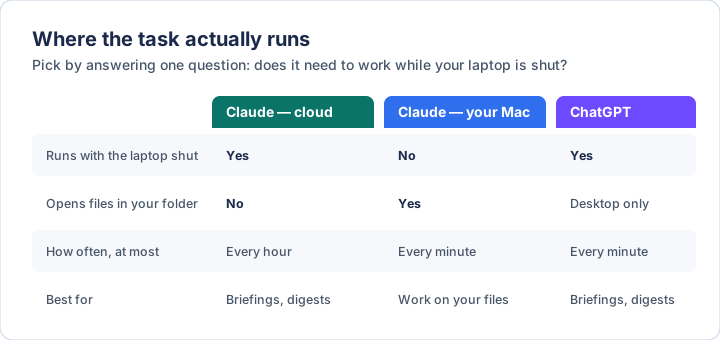
If the task only needs to read the web, your calendar, or your connected tools — a morning briefing, a weekly digest — put it in the cloud, on either platform, and forget about it.
If it needs to open the files in a folder you’ve connected, it has to run on your machine, which means the app has to be open and the computer awake. That constraint is not a bug you can configure away; it’s the price of local file access. If you haven’t connected a folder yet, that post is here.
Claude, on your machine
In the Claude desktop app:
1. Click Routines in the sidebar.
2. Click New routine and choose Local.
3. Fill in four things — a name, a short description, the instructions (what it should do, written exactly like a normal message), and a schedule.
4. Pick the folder it runs in. This is required, and if you haven’t trusted that folder before, it’ll ask you to now.
5. Save.
The schedule presets are Manual, Hourly, Daily, Weekdays, and Weekly. For anything else — every six hours, the first of the month, one run next Tuesday — don’t hunt through the interface. Just say it in a normal session: “schedule a task to run all the tests every six hours.” Same for a one-off: “remind me at 3pm tomorrow to check the deploy.”
When a task fires you get a desktop notification, and the run appears under Scheduled in the sidebar as its own session, so you can open it and read exactly what happened.
Do this immediately after creating one: click Run now and sit through the first run. It will ask permission for anything it needs, and choosing “always allow” teaches it for next time. Skip this and you get the worst failure mode here — a task that fires at 6am, hits a permission prompt, and quietly waits for you instead of doing the job.
For tasks that must run with the computer off, create a remote routine instead of a local one. Those run on Anthropic’s infrastructure, can’t touch your local files, and fire at most hourly.
ChatGPT
There’s no form to fill in. You describe it:
“Every weekday at 8am, check my calendar for the day and give me a one-screen brief: what’s scheduled, what needs prep, and anything that moved.”
ChatGPT drafts the prompt, sets the cadence, and asks you to confirm. One thing it will ask that’s worth thinking about: whether each run starts fresh or comes back to this same conversation. Fresh is right for a daily briefing — each one stands alone. Same-conversation is right when the point is continuity and you want it to remember what it said yesterday.
Everything lives under Scheduled in the sidebar, which behaves like an inbox — unread markers on runs that want your attention. Editing, pausing, and deleting happen there, or by just asking.
Schedules go from daily and weekly down to minute intervals, and if you need something genuinely odd, the underlying recurrence rule is editable.
Two things from OpenAI’s own guidance that are worth repeating: test the prompt
manually first, in an ordinary chat, before you schedule it. And if the task
depends on a skill, invoke it explicitly
with $skill-name rather than hoping it gets picked up on its own.
Codex, and the session-only version
Worth knowing so you don’t go looking for it: Claude Code has /loop, which
re-runs a prompt on an interval — /loop 5m check if the deploy finished. It’s
genuinely useful, but it’s session-scoped. It lives in that one conversation,
stops when the session ends, and expires after seven days regardless.
That makes it a tool for watching something over an afternoon, not for automating your Mondays. For anything durable, use the desktop or cloud options above.
The part that actually matters
Here’s what changes when a prompt runs unattended. You’re not there to notice it misread something, to say “no, not that one,” or to reply to a question. It runs, it produces something, and either that output is usable on its own or the task is pointless.
Which means the prompt has to carry the judgment you’d normally supply live.
It has to know what time it is. Scheduled runs are not punctual. Both platforms stagger fire times deliberately, and a local task can miss its slot entirely:
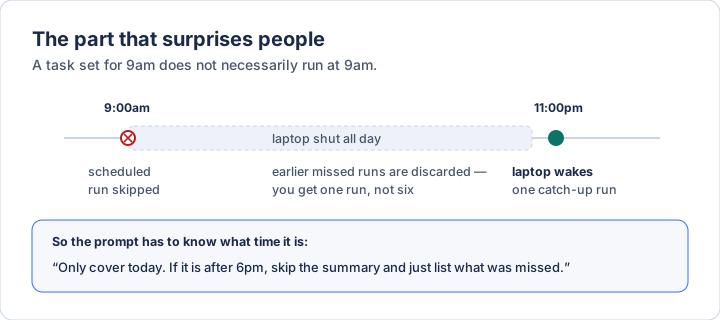
Note that you get one catch-up run, not one per missed day. So a prompt saying “summarise today’s work” can fire at 11pm on a day you never opened the laptop. Write the guardrail into the prompt itself: “Only cover today. If it’s after 6pm, skip the summary and just list what was missed.”
It has to know what counts as important. “Summarise my week” produces something shaped like a summary and worth nothing. Say what to lead with, what to leave out, and how long it should be. You’re replacing the edit you’d otherwise make by hand.
It has to know when to say nothing. The fastest way to start ignoring a scheduled task is to receive it every day whether or not anything happened. Give it permission to be brief: “If nothing changed, reply with one line saying so.”
It has to know when to stop. If the thing it’s meant to act on isn’t there, or something looks wrong, say what you want — flag it and wait, rather than improvise.
The test for all four: if this ran while you were on a plane, would the output still be worth reading when you landed?
Start with one, and read the first three runs
One task. Something you currently do manually, so you can compare.
Then actually read the first three outputs and edit the prompt after each. This is where the whole thing succeeds or fails — a scheduled task you never tuned becomes noise you filter, and a scheduled task you tuned twice becomes something you’d miss. Same task, different amount of attention in week one.
Then check back monthly. Prune the ones you no longer read.
Keeping this current
Scheduling is one of the faster-moving corners of both products, and menu names will drift before the concepts do. When the screen disagrees with this page, believe the screen:
- Claude, scheduled tasks on your machine: code.claude.com/docs
- Claude,
/loopin a session: code.claude.com/docs - ChatGPT automations: learn.chatgpt.com
Written 31 July 2026, and checked against each product’s documentation on that date. Diagrams are original to this post.
If you want the layer underneath this — what these systems actually are, where they fail, and the vocabulary to follow the conversation — The AI Primer is the plain-English version. $23.97.