Most people’s experience of AI is a text box. You paste something in, you get something back, you copy it out. It works, and it stays permanently shallow, because every conversation starts from nothing and ends in the clipboard.
The step that changes this is unglamorous: you give the assistant a folder.
Not a file — a folder. From that point it can open what’s inside, work across several documents at once, and save what it produces back where you’ll find it. That’s the whole unlock, and it takes about five minutes.
What “connecting a folder” actually means
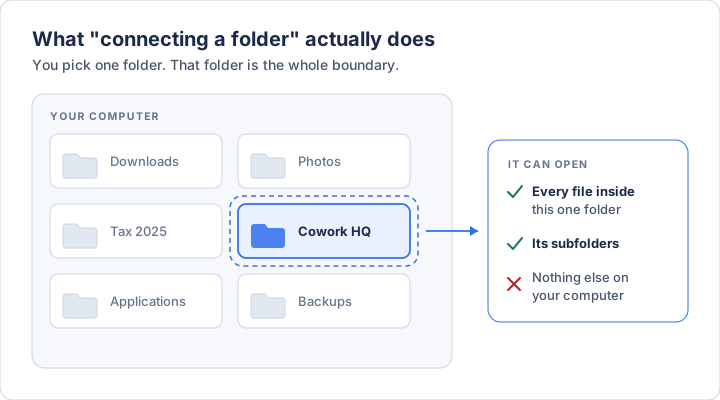
You pick one folder. The assistant can open anything inside it and anything in its subfolders. It cannot see the rest of your computer.
That boundary is the point. It’s why this is safe to do, and it’s also why the choice of folder matters more than any setting you’ll touch afterwards. A tidy folder with the right things in it gives you a useful assistant. Pointing it at your entire hard drive gives you a confused one.
Why it beats uploading files
It reads across things. Six documents in a folder can be compared, merged, and cross-checked. Six documents pasted into a chat, one at a time, mostly can’t.
It saves the output where the output belongs. The draft lands in a file, in a folder, with a name — not in a chat window you’ll lose next Tuesday.
It stops you re-explaining yourself. Keep a page about how you work in that folder and it gets read every time. You stop opening with three paragraphs of background.
It handles the boring shape of real work. Renaming forty files. Pulling the figures out of a stack of PDFs into one sheet. Nothing clever — just the kind of thing you’d never ask a chatbot to do because getting the material in was harder than doing it yourself.
The honest limit: it still gets things wrong, and now it’s getting them wrong in your files. Everything below assumes you’re pointing it at a folder you made on purpose, not at ten years of accumulated documents.
First, make the folder
Before you connect anything, make something worth connecting. New folder, somewhere obvious — Documents is fine — and four subfolders inside it:
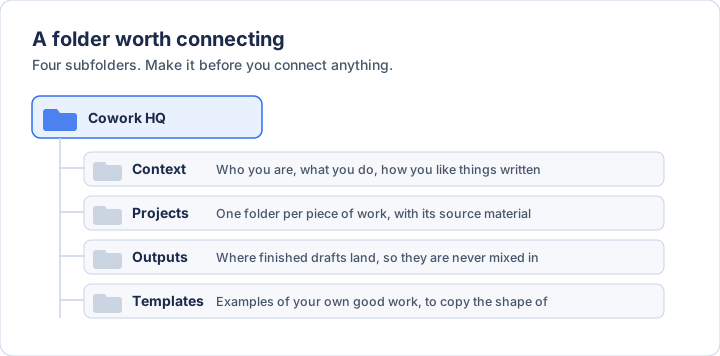
Two of these do the heavy lifting. Context is where you put a plain page about what you do and how you like things written — that page is the difference between generic output and something that sounds like you. Outputs keeps what the assistant produces separate from what you gave it, which you will appreciate the first time you can’t remember which draft was yours.
This four-folder layout is adapted from Michael Crist’s Claude Cowork guide, which is worth reading in full if you want the longer version.
Three doors, same idea
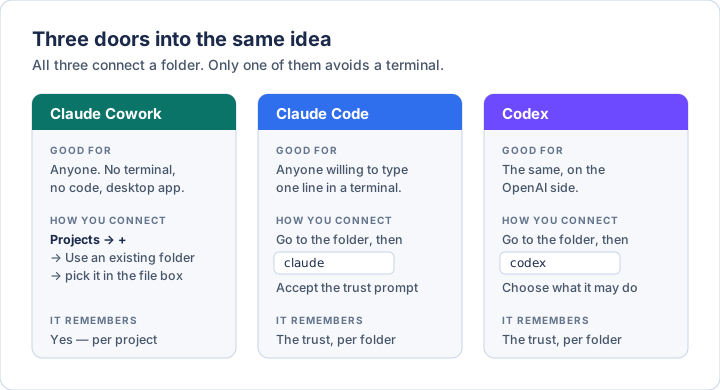
Pick one. If you’ve never done this before, pick Cowork — it’s the only one with no terminal in it.
Claude Cowork
Cowork is a desktop app. It runs on your own machine, which is exactly why it can touch your files. You’ll need the Claude desktop app installed, on Mac or Windows, on a paid plan.
1. Open the desktop app and find Projects in the left-hand panel.
2. Click +.
3. Choose Use an existing folder — this is the option that connects a folder you already have. (The other two options start a fresh folder, or pull in a project from Claude chat.)
4. Pick the folder you just made.
5. Name the project, and add instructions — a few lines on tone, format, and rules that apply to everything you do in this project. Something like: always ask before deleting anything; write in plain English; put finished drafts in Outputs.
6. Click Create.
That’s it. The project now has its own files, its own instructions, and its own memory of what you’ve worked on inside it.
Two things worth knowing early. Cowork projects are stored locally on that computer — there’s no cloud sync, so they don’t follow you to another machine. And it will ask permission before it does anything irreversible. Read those prompts rather than clicking through them; that habit is the entire safety system.
The full walkthrough, with Anthropic’s own screenshots, is in their help center: Organize your tasks with projects in Claude Cowork.
Claude Code and Codex — the terminal bit
Both of these live in a terminal. If you’ve never opened one, that sounds like a wall. It’s one line of typing, and this section is the part that gets you over it.
Opening a terminal
Mac: press Cmd + Space, type Terminal, hit enter.
Windows: open the Start menu, type Terminal, hit enter.
A window appears with some text and a blinking cursor. This is what it’s telling you:
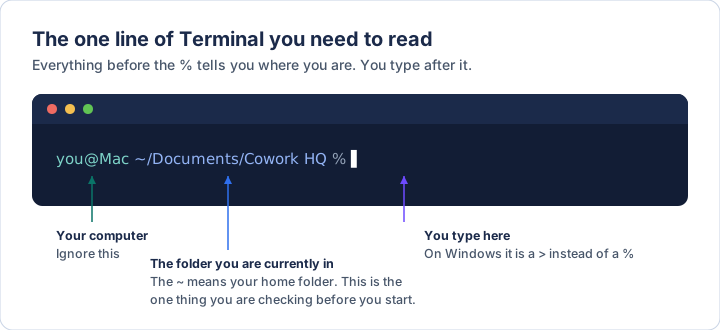
The only part that matters is the middle: the folder you are currently in. A terminal is always standing in one folder, and the tool you start will connect to whichever folder that is. So the whole job is walking it to the right place.
Walking it to your folder
Type cd followed by a space — that’s “change directory” — then drag your
folder from Finder or File Explorer straight onto the terminal window. It will
paste the path for you. Press enter.
cd /Users/you/Documents/Cowork HQ
The prompt now shows your folder’s name. You’re standing in the right place. This drag trick is the thing nobody tells beginners, and it removes the only genuinely fiddly step.
Starting the tool
For Claude Code, type:
claude
For Codex:
codex
(Each needs to be installed once first — follow the official instructions for whichever you’re using, linked at the bottom.)
The prompt you’ll get on first run
The first time you start either one in a new folder, it asks whether you trust it. This is not a formality — it’s the tool asking permission to act on the files in front of it.
Claude Code asks whether you trust the files in this folder. Say yes only for folders you made or work you know. It remembers your answer per folder, so you’ll answer once and not again.
Codex starts more cautiously still: until you tell it a folder is trusted, it
runs read-only — it can look at your files and answer questions, but every edit
needs your approval. When you do trust the folder, it can write inside that
folder on its own, and still stops to ask before doing anything outside it or
going to the network. You can change this later from /approvals inside Codex.
Both of these defaults are sensible. Leave them alone until you have a specific reason not to, and be suspicious of any advice that starts by telling you to turn the approvals off.
Adding a second folder
If you need one more folder in the same session — say your project folder plus a
reference folder somewhere else — Claude Code has /add-dir for exactly that.
Type it, give it the path, and both are in scope.
Your first ten minutes
Don’t start with something ambitious. Start with something you can check.
- Ask it what it sees. “What’s in this folder? Just list it and tell me what you think each thing is.” This confirms the connection worked and shows you how it reads your material.
- Ask it to write one thing into Outputs. A summary of a document you know well. Then open the file yourself and see whether it’s right.
- Ask it to do the boring one. Renaming, sorting, pulling a list out of a stack of documents. This is where it earns its place, and it’s easy to verify.
The point of all three is that you can tell immediately whether the output is good. Start with tasks where you’d notice a mistake — that’s how you build a real sense of where the thing is reliable, which no amount of reading gets you.
Four rules worth keeping
Connect a folder, not your whole computer. The temptation is to give it everything so it never lacks context. What you get instead is an assistant sifting through your tax returns to answer a question about a memo.
Keep a copy of anything you’d hate to lose. It edits real files. If the folder isn’t backed up or in a sync service, back it up before you start.
Read the approval prompts. They are short, they appear at exactly the moments that matter, and clicking through them out of habit defeats the design.
Don’t put anything in there you wouldn’t want read. Passwords, private documents, anything sensitive. Everything in that folder is fair game to whatever you connect.
Keeping this current
These products are moving quickly, and menu names change faster than the ideas behind them. When something on screen doesn’t match what’s written here, believe the screen — and check the source:
- Claude Cowork projects: support.claude.com
- Claude Code: code.claude.com/docs
- Codex, features and setup: learn.chatgpt.com
- Codex approvals and sandboxing: developers.openai.com
Once you’ve got a folder connected, the natural next step is teaching it how you do a recurring task — which is what building your own skill covers.
Written 28 July 2026, and checked against each product’s documentation on that date. Diagrams are original to this post.
If you want the layer underneath this — what these systems actually are, where they fail, and the vocabulary to follow the conversation — The AI Primer is the plain-English version. $23.97.